A Beginner's Guide to Mastering Spotlight Search on Mac

Learn how to use Spotlight search on your Mac beyond finding files. This guide covers advanced tips for calculations, web searches, and system shortcuts to boost your productivity.
Key Takeaways
- Spotlight can replace your calculator for quick math and currency conversions, with results you can copy using Command + C.
- Use keyboard shortcuts like ⌘+B for web searches and ⌘+R to locate files directly in Finder, saving you clicks and time.
- Filter results with operators like 'kind:pdf' to find exactly what you need instantly, even if you don't know the file's name.
On this page
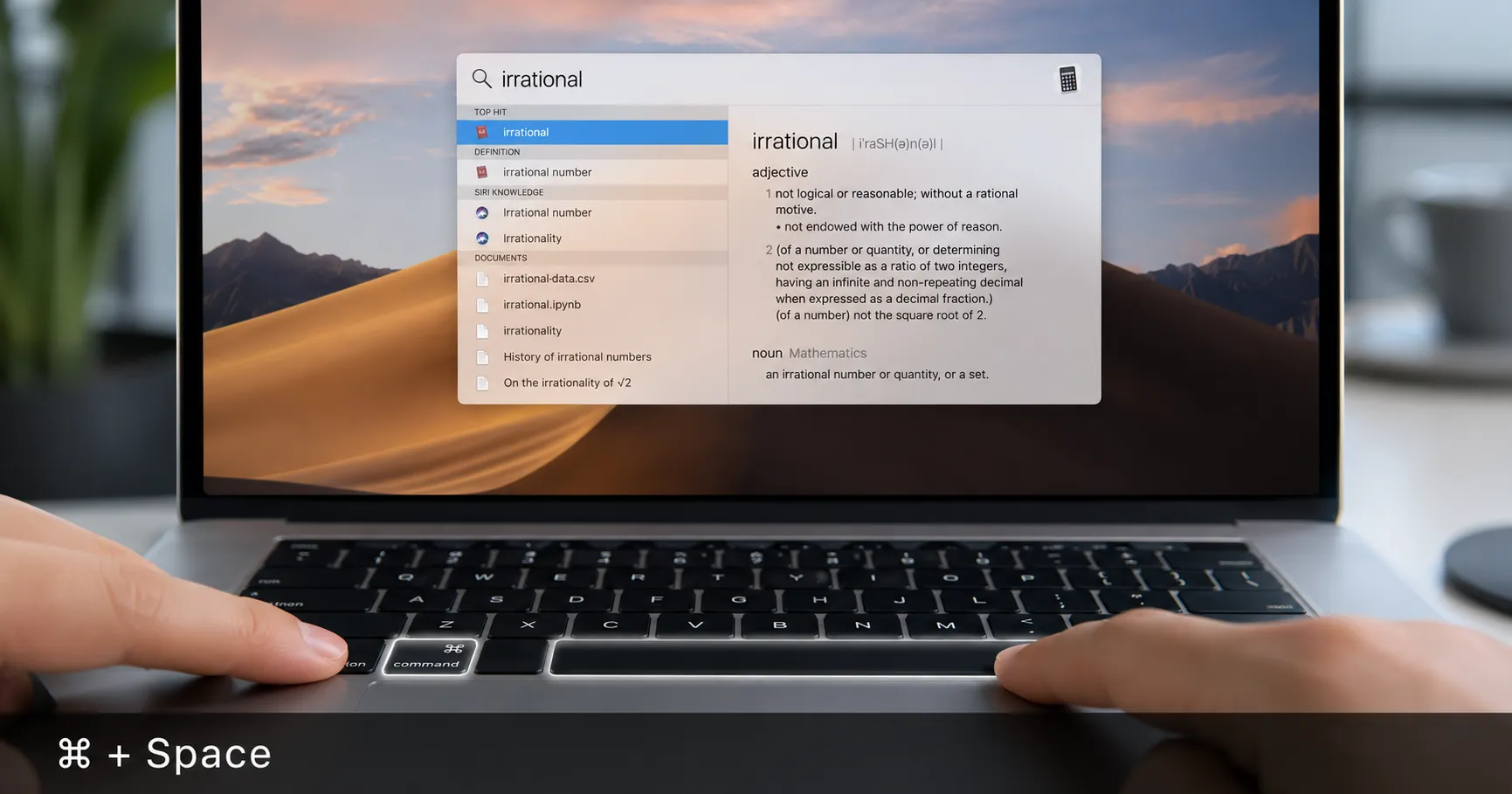
Most Mac users know Spotlight as a way to find a file or launch an app. But treating it as just a file finder means you're missing out on its most powerful features. With a few key techniques, you can transform Spotlight from a simple search bar into a central productivity hub. The fastest way to launch it is with the keyboard shortcut: Command (⌘) + Spacebar.
Go Beyond Files: Calculations and Conversions
Spotlight is a surprisingly capable calculator and unit converter, saving you the step of opening another app. You can perform calculations directly in the search bar. Simply type your equation and the answer appears instantly.
This works for a variety of operations:
- Basic Arithmetic: `248*17` or `(45+18)*3`
- Percentages: `15% of 240`
- Conversions: `100 euros to dollars`
Once you have a result, you don't need to retype it. According to MacMost, you can press Command + C to copy the answer directly to your clipboard, letting you paste it into a document or message without missing a beat.
Launch Web Searches and Look Up Definitions
You can start a web search without ever opening your browser. Just type your query into Spotlight and press Command + B to immediately open the results in your default web browser. This functionality is powered by Siri Suggestions, which is a core part of Apple's AI upgrade strategy for its operating systems.
Spotlight also serves as a quick dictionary. If you need to define a word, type it and press Command + L to jump straight to its definition within the results. For a more detailed view, Command + D will open the term in the Dictionary app.
Control Your Mac with System Shortcuts
Spotlight's true power lies in its ability to perform system actions. You can manage settings and navigate files using only your keyboard, which is often much faster than clicking through menus. For instance, you can toggle Focus modes by typing "focus" and selecting the one you need.
Here are some essential shortcuts for managing your search results:
| Shortcut | Action |
|---|---|
| Spacebar | Preview the selected file using Quick Look. |
| Command + R | Reveal the selected file's location in a Finder window. |
| Command + I | Open the 'Get Info' window for the selected item. |
| Esc (once) | Clear your current search query. |
| Esc (twice) | Dismiss the Spotlight window completely. |
These commands allow you to find, inspect, and manage files without ever lifting your hands from the keyboard.
Refine Your Searches with Advanced Operators
When you have a vague idea of what you're looking for, search operators can help you narrow the results. Instead of just typing a filename, you can filter by file type. For example, typing `kind:pdf` will show you only PDF documents on your Mac. This is particularly useful for finding specific documents like reports or receipts when you can't remember the exact name. Mastering this simple syntax makes finding the right file significantly faster.
References:
- webnots.com, How to Use Mac Like Spotlight Search in Windows PC? – WebNots. Accessed on Jun 16, 2026
- macmost.com, 10 Mac Spotlight Keyboard Shortcuts. Accessed on Jun 16, 2026
- blog.tuttosemplice.com, Spotlight on Mac: Keyboard Shortcuts for Lightning-Fast Searches | TuttoSemplice.com. Accessed on Jun 16, 2026
About the author
The Mixstackrr Team is a group of writers and editors with more than 10 years of combined experience in SEO and consumer tech. We test devices, dig through settings, and turn everyday tech problems into clear, step-by-step guides anyone can follow.