Essential MacBook Keyboard Shortcuts and Trackpad Gestures You Should Know

Master your MacBook with this curated list of the most impactful keyboard shortcuts and trackpad gestures. Speed up window management, app switching, and text editing today.
Key Takeaways
- ⌘ + Space for Spotlight Search is one of the most powerful shortcuts for launching apps and finding files instantly.
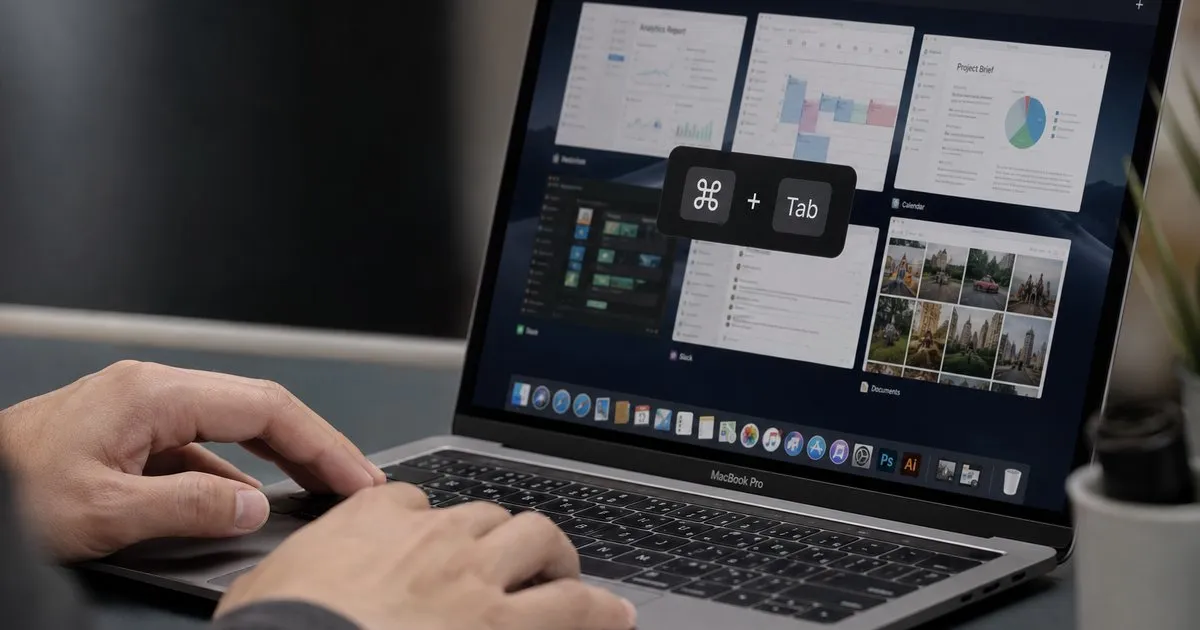
- Mastering window management shortcuts like ⌘ + H (Hide) and ⌘ + Tab (App Switcher) dramatically reduces reliance on the mouse.
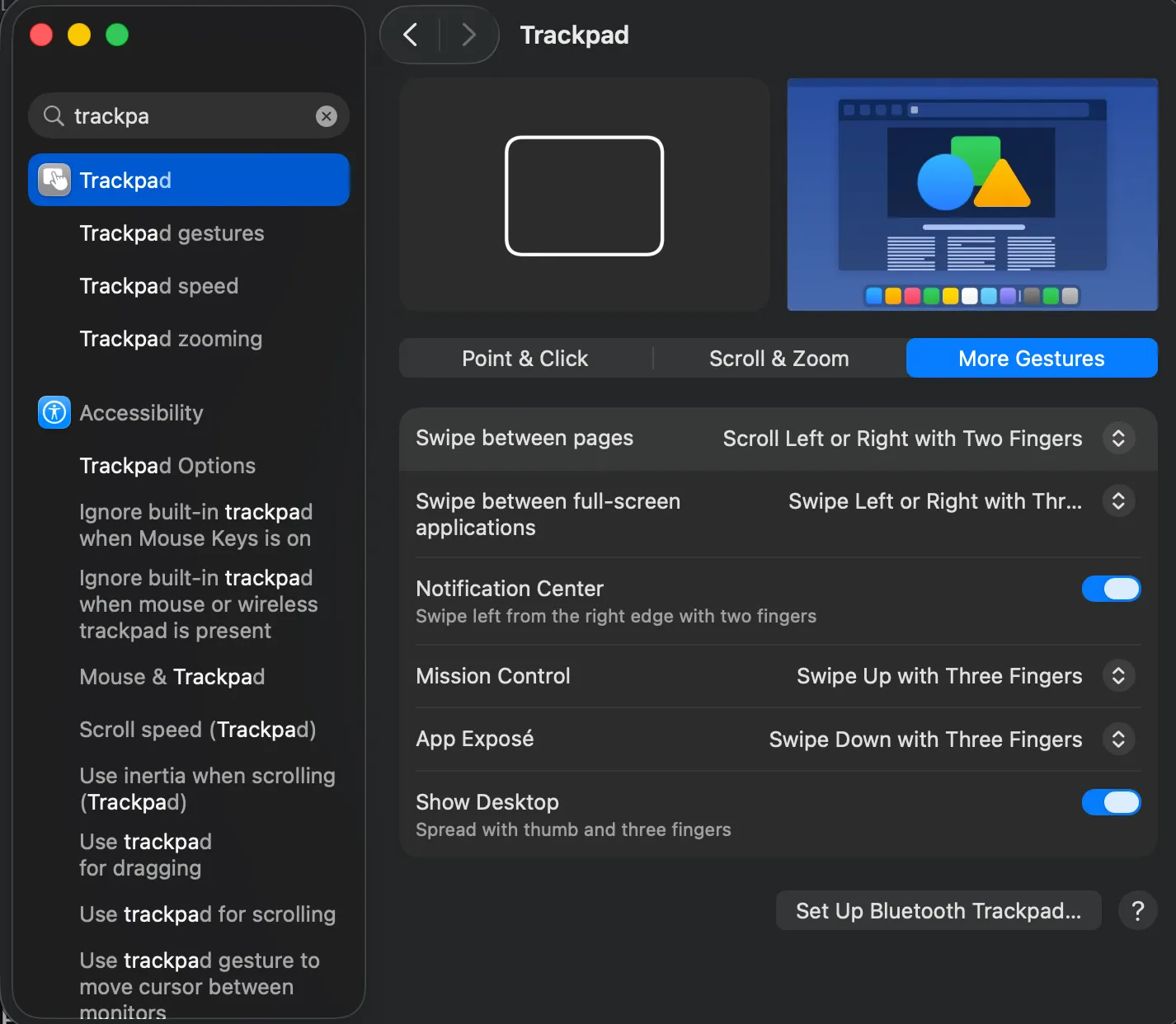
- Trackpad gestures are customizable; review them in System Preferences → Trackpad to tailor them to your workflow.
On this page
Using a MacBook effectively means moving beyond point-and-click. Learning a core set of keyboard shortcuts and trackpad gestures can significantly speed up your daily workflow, from managing windows to editing text. These commands allow you to perform actions instantly without lifting your hands from the keyboard or trackpad.
Understanding the Modifier Keys
Nearly all Mac shortcuts are built around a few essential modifier keys. Familiarize yourself with these symbols, as they are the foundation for becoming more efficient on your device.
| Symbol | Key | Primary Function |
|---|---|---|
| ⌘ | Command | The main modifier key, similar to Ctrl on Windows. |
| ⌥ | Option (Alt) | Used to access alternate functions and special characters. |
| ⌃ | Control | Often used for system-level commands and right-clicking. |
| ⇧ | Shift | Modifies or extends the function of other keys. |
You can review and customize existing shortcuts by navigating to System Preferences → Keyboard → Shortcuts on your Mac.
Window and Desktop Management
Juggling multiple windows is a common task. These shortcuts give you precise control over your workspace without needing to drag windows around with your mouse.
- Minimize current window: ⌘ + M
- Close current window: ⌘ + W
- Enter or exit full-screen mode: ⌃ + ⌘ + F
- Hide the current app: ⌘ + H
- Hide all other apps: ⌘ + ⌥ + H
For a broader view, Mission Control gives you a bird's-eye perspective of everything you have open. Press Control (⌃) + Up Arrow to see all your open windows and desktops at once. According to Digital Trends, mastering commands like these is fundamental for efficient multitasking on macOS.
App Switching and Navigation
Switching between applications is one of the most frequent actions you perform. Using a keyboard shortcut is far faster than clicking on icons in the Dock.
| Shortcut | Action |
|---|---|
| ⌘ + Tab | Cycle forward through your open applications. |
| ⌘ + ` | Switch between different windows of the same application. |
| ⌘ + Q | Quit the active application completely. |
| ⌘ + Space | Open Spotlight Search. |
The Command (⌘) + Space shortcut is especially powerful. Spotlight Search is your universal launcher for finding files, opening apps, and getting quick information, a concept Apple continues to build on with tools like the new Siri. If an app becomes unresponsive, press ⌘ + ⌥ + Esc to open the Force Quit dialog.
Essential Text Editing Shortcuts
Whether you're writing an email or coding, these text editing shortcuts save a tremendous amount of time by keeping your hands on the keyboard.
- Copy selection: ⌘ + C
- Cut selection: ⌘ + X
- Paste content: ⌘ + V
- Undo the last action: ⌘ + Z
- Redo the last action: ⌘ + ⇧ + Z
- Select all content: ⌘ + A
- Find text: ⌘ + F
These commands are universal across most applications in macOS, making them reliable tools in any context.
Mastering Trackpad Gestures
Beyond keyboard commands, your MacBook's trackpad offers built-in shortcuts through gestures. Instead of clicking through menus, you can use simple finger movements like swipes, pinches, and taps to navigate. Common gestures allow you to swipe between full-screen apps, pinch to zoom in on content, or swipe up with three or four fingers to open Mission Control. The key benefit is fluid, direct interaction with the OS. Since these can be customized, it's worth visiting System Preferences → Trackpad to see short videos of each gesture and enable the ones that best fit your workflow.
References:
- rd.com, Mac Shortcuts in 2024: Helpful Keyboard Shortcuts to Know | Trusted Since 1922. Accessed on Jun 16, 2026
- exifviewerapp.com, Top MacBook and iMac Keyboard Shortcuts to Boost Your Productivity: A Comprehensive Guide for 2024 - EXIF Viewer by Fluntro. Accessed on Jun 16, 2026
- applescoop.org, Top 15 Keyboard Shortcuts Every Mac User Should Know in 2024. Accessed on Jun 16, 2026
About the author
The Mixstackrr Team is a group of writers and editors with more than 10 years of combined experience in SEO and consumer tech. We test devices, dig through settings, and turn everyday tech problems into clear, step-by-step guides anyone can follow.