How to Improve Your MacBook's Battery Life and Longevity

Get more out of a single charge and preserve your MacBook's battery health for the long term. This guide covers essential macOS settings and charging habits.
Key Takeaways
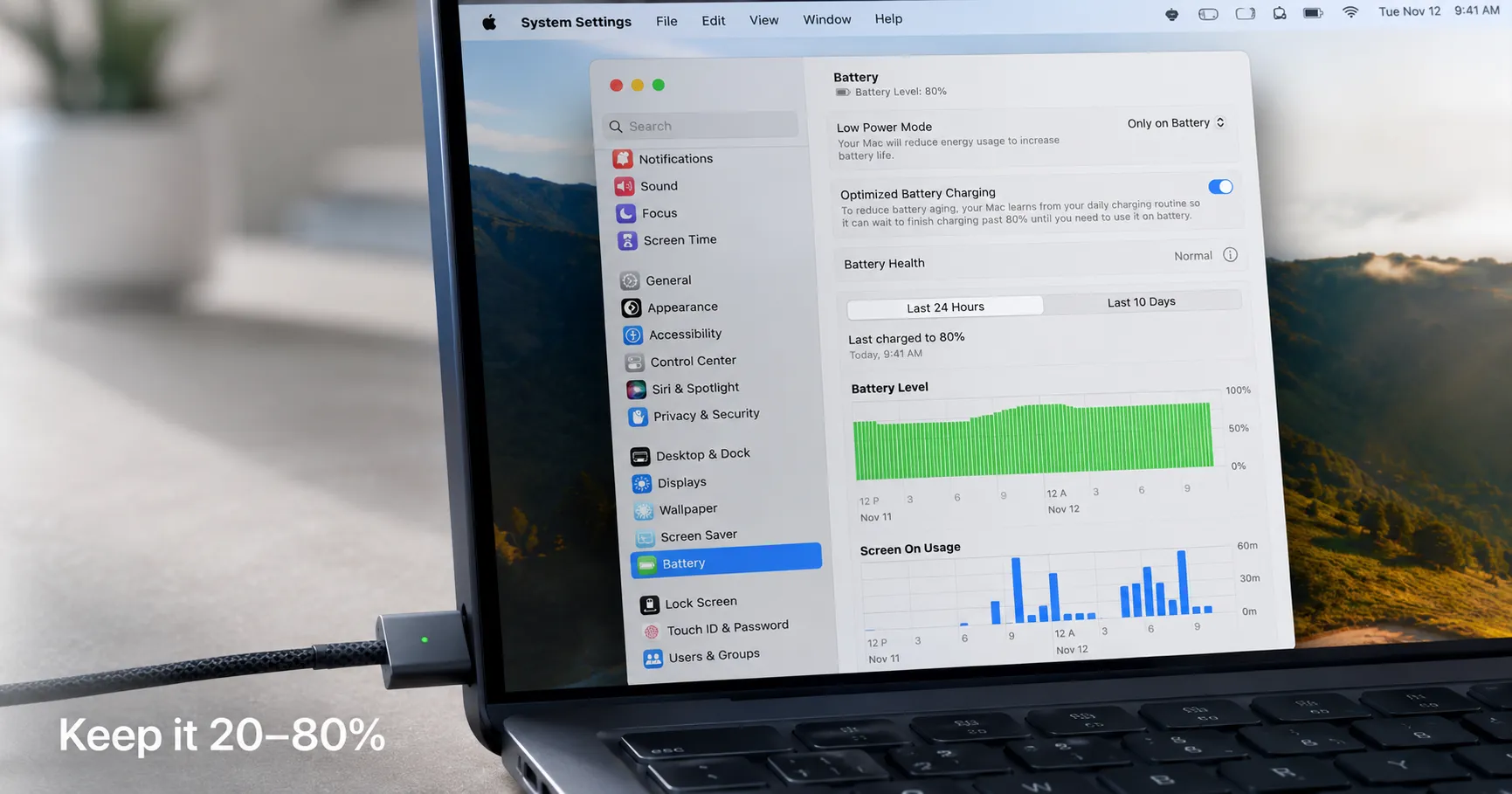
- Enable "Optimized Battery Charging" in System Settings to reduce battery aging by learning your daily routine.
- Use the Activity Monitor's "Energy" tab to identify and close applications that are draining your battery the fastest.
- For long-term health, try to keep your battery level between 20% and 80%, avoiding constant full charges or complete drains.
On this page
To get the most out of your MacBook's battery, you need a strategy that addresses both daily usage and long-term health. A few key adjustments in macOS and smarter charging habits can significantly extend how long you can work on a single charge and slow down battery degradation over time. These practices focus on reducing power consumption and minimizing stress on the battery's chemical components.
Key Software Settings to Adjust
Your MacBook has several built-in tools designed to conserve power. Activating and managing them correctly is the first step toward better battery performance. Regularly updating your software is also crucial, as updates often include power-saving optimizations for core system features, including the new Siri AI upgrade.
Enable Optimized Battery Charging and Low Power Mode
Two of the most effective features are Optimized Battery Charging and Low Power Mode. According to Apple, Optimized Battery Charging learns your daily routine and delays charging past 80% until you need it, which reduces battery aging. You can enable it in System Settings > Battery. For immediate power savings, Low Power Mode reduces CPU performance and screen brightness. You can activate it from the battery icon in the menu bar.
Manage Energy-Hungry Applications
Some applications drain your battery much faster than others. You can identify them by clicking the battery icon in your menu bar, which lists "Apps Using Significant Energy." For a more detailed breakdown, use the Activity Monitor utility:
- Open Activity Monitor (in Applications/Utilities).
- Go to the "Energy" tab.
- Sort by "Energy Impact" to see which apps are currently using the most power.
Quit any high-impact apps you aren't actively using. Consider using native Apple apps like Safari, which are generally more energy-efficient than third-party browsers like Google Chrome.
Adjust Display and Keyboard Settings
The screen is one of the largest power consumers. Lowering its brightness to a comfortable level (often 40-60% indoors) can make a noticeable difference. You should also enable "Automatically adjust brightness" in System Settings > Displays. Additionally, configure your display to turn off after a short period of inactivity and turn off your keyboard backlight when you don't need it.
Best Practices for Charging and Physical Care
How you charge your MacBook is just as important as your software settings, especially for preserving its long-term capacity.
Avoid Extreme Charge Levels
Modern lithium-ion batteries are healthiest when kept between 20% and 80% charge. As noted by Fast Company, constantly leaving your MacBook plugged in at 100% can cause stress from high voltage and heat. Conversely, frequently letting the battery drain completely to 0% can also degrade it. If you work while plugged in for long periods, macOS's battery management will often hold the charge at 80% automatically.
Manage Temperature and Accessories
Extreme heat and cold can permanently damage your battery's capacity. Avoid leaving your MacBook in a hot car or in direct sunlight. High temperatures are particularly harmful when the battery is fully charged. Finally, unplug any external accessories like hard drives or monitors when you're not using them, as they draw power directly from your MacBook, increasing battery strain.
About the author
The Mixstackrr Team is a group of writers and editors with more than 10 years of combined experience in SEO and consumer tech. We test devices, dig through settings, and turn everyday tech problems into clear, step-by-step guides anyone can follow.