How to Use Apple Intelligence on Your MacBook for Productivity

Ready to boost your productivity with Apple's new AI? This guide provides step-by-step instructions to enable and use Apple Intelligence on compatible MacBooks.
Key Takeaways
- Apple Intelligence requires a Mac with an M1 chip or later and macOS Sequoia 15.1 or newer to function.
- You must manually enable the features in System Settings under the 'Apple Intelligence & Siri' menu.
- The redesigned Siri is more conversational and deeply integrated with Spotlight, allowing for typed and spoken commands.
On this page
Apple Intelligence integrates a personal AI system directly into your MacBook, designed to streamline your workflow and automate tasks. To use these features, you must have a compatible Mac and the correct software version. This guide walks you through the requirements and practical steps to leverage the new AI tools.
Check Your MacBook's Compatibility First
Before you can use Apple Intelligence, your device must meet specific hardware and software requirements. Intel-based Macs are not supported because they lack the necessary Neural Engine for on-device AI processing. According to Apple Support, the service is free on all compatible devices.
Hardware Requirements
Your Mac must have an Apple silicon chip (M1 or newer). Compatible models include:
- MacBook Air (M1 and later)
- MacBook Pro (M1 and later)
- iMac (M1 and later)
- Mac mini (M1 and later)
- Mac Studio (M1 Max and later)
- Mac Pro (M2 Ultra)
Software and System Requirements
In addition to a compatible chip, you also need the following:
- macOS Sequoia 15.1 or a later version.
- At least 7GB of available storage space.
- Siri and the device language must be set to the same supported language.
How to Enable Apple Intelligence on Your Mac
Once you've confirmed your Mac is compatible, turning on the features is straightforward. Follow these steps to activate the AI tools in your system settings.
- Navigate to System Settings from the Apple icon in the top-left corner of your screen.
- Select Software Update and ensure your MacBook is running the latest version of macOS.
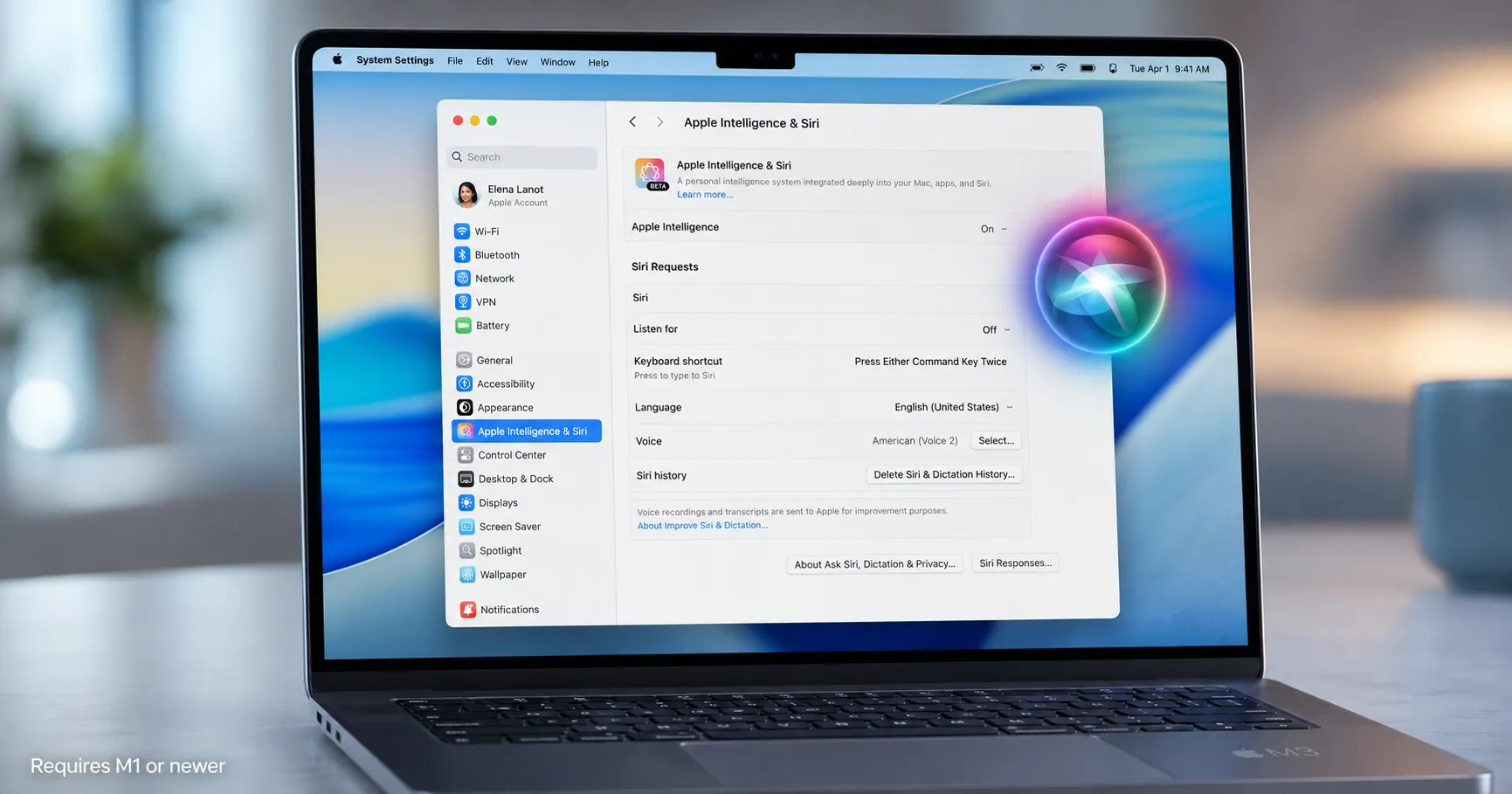
- Click on Apple Intelligence & Siri in the settings menu.
- Toggle the switch to Turn on Apple Intelligence.
- Customize which features you want to enable, such as Writing Tools and Summaries, then restart your Mac.
Using the New, Smarter Siri
The most significant upgrade is the redesigned Siri, which is now more natural, conversational, and context-aware. It's integrated directly into Spotlight, meaning you can type a query or speak to Siri using the same interface. This is a core part of what Apple's AI upgrade actually does to make the assistant more useful.
Siri can now follow along with corrected speech. For example, you can say, "Set a timer for 10 minutes - no, I mean 15," and it will correctly set a 15-minute timer without confusion. You can ask it to perform complex, multi-step actions within and across apps, like finding a photo from a specific trip and adding it to a note, or locating an email from a colleague and summarizing its key points.
Streamline Your Workflow with Writing Tools
Apple Intelligence brings system-wide Writing Tools to native apps like Mail, Notes, and Pages. After enabling them in System Settings, you can access AI-powered assistance for proofreading, rewriting, and summarizing text. These tools help you adjust the tone of an email, clean up your notes, or generate a concise summary of a long document directly within the application you're using. This integration is designed to reduce the time you spend on editing and refinement, allowing you to focus on the core message.
About the author
The Mixstackrr Team is a group of writers and editors with more than 10 years of combined experience in SEO and consumer tech. We test devices, dig through settings, and turn everyday tech problems into clear, step-by-step guides anyone can follow.