How to Use Mission Control and Focus Modes for Better Productivity

Combine macOS Mission Control's virtual desktops with custom Focus modes to eliminate distractions and organize your digital workspace. This guide shows you how.
Key Takeaways
- Use Mission Control's "Spaces" to create up to 16 virtual desktops, dedicating each one to a specific task or project.
- Configure Focus modes to automatically filter notifications from specific apps and people based on time, location, or the app you're using.
- Combine both features by assigning a specific Focus mode to a dedicated Mission Control desktop for a truly distraction-free environment.
On this page
Organize Your Workspace with Mission Control
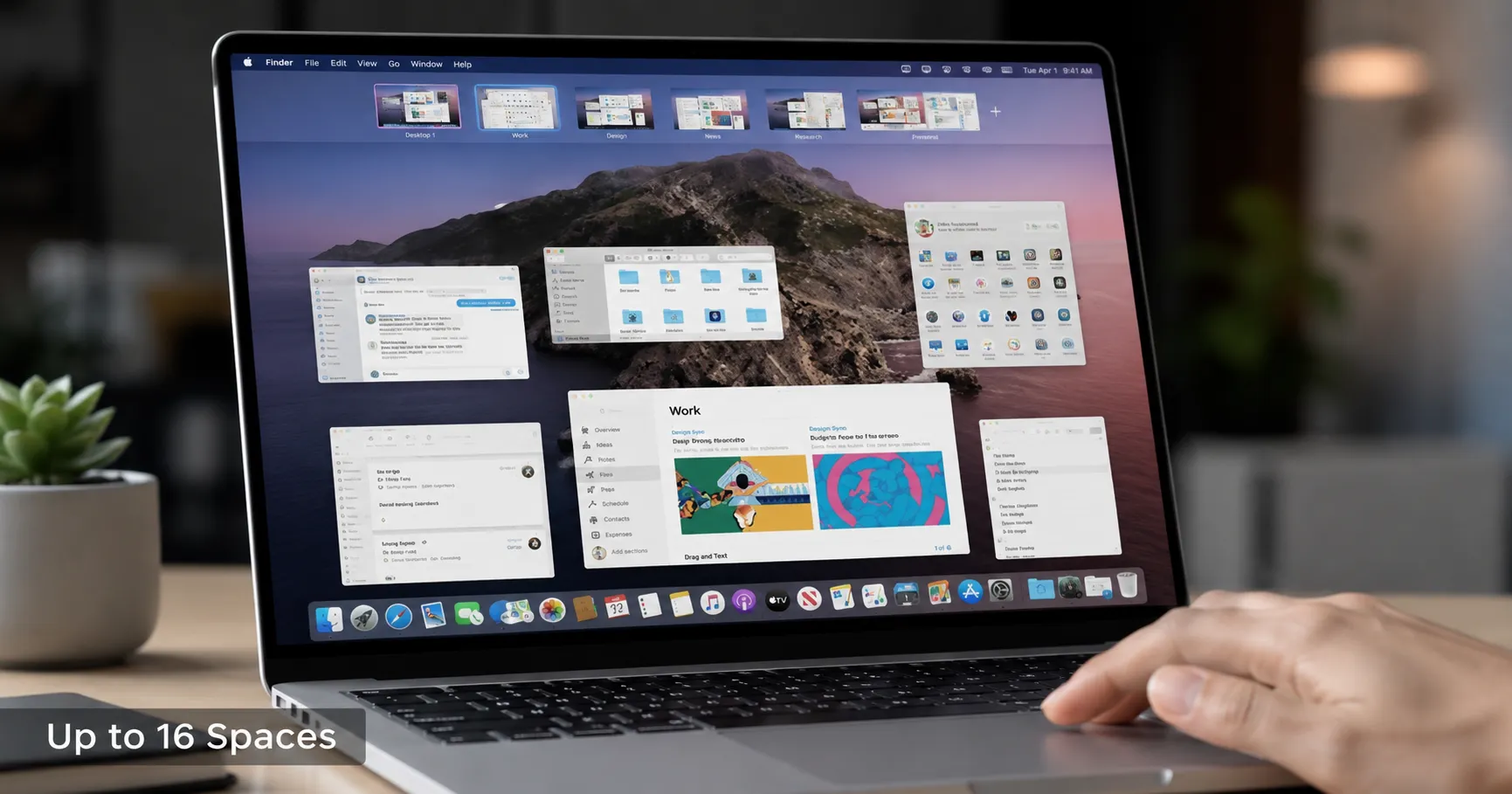
Mission Control gives you a bird's-eye view of all your open windows, full-screen apps, and virtual desktops, which Apple calls Spaces. Using Spaces effectively is like having multiple monitors on a single screen, allowing you to dedicate an entire desktop to a specific project or task, reducing visual clutter.
How to Set Up and Use Multiple Desktops
Creating a structured workspace is a straightforward process. You can create up to 16 distinct Spaces to organize your applications.
- Open Mission Control. You can access it by pressing the F3 key, swiping up with three or four fingers on your trackpad, or using the keyboard shortcut Control + Up Arrow.
- Create a new desktop. Once Mission Control is open, move your cursor to the top of the screen. A bar showing your current desktops will appear. Click the plus (+) button on the far right to add a new, empty Space.
- Assign apps to specific desktops. Drag an application window from your main desktop and drop it onto the thumbnail of the new Space you just created. For a more permanent setup, Control-click an app's icon in the Dock, select 'Options', and then 'Assign To' > 'This Desktop'.
- Switch between your desktops. The fastest way to navigate is by swiping left or right with three or four fingers on your trackpad. Alternatively, use the Control + Right Arrow and Control + Left Arrow keyboard shortcuts.
For a more predictable workflow, go to System Settings > Desktop & Dock and find the Mission Control settings. Consider turning off "Automatically rearrange Spaces based on most recent use" to keep your desktops in a fixed, manual order.
Eliminate Distractions with Focus Modes
Focus modes are a powerful tool for controlling which notifications and people can reach you. Introduced in macOS Monterey, they are a significant upgrade to the old Do Not Disturb feature, allowing for granular control that syncs across your Apple devices.
How to Create and Customize a Focus Mode
You can create up to ten custom Focus modes tailored to different activities like working, reading, or personal time.
- Navigate to Focus settings. Open System Settings and click on 'Focus' in the sidebar.
- Add a new Focus. Click 'Add Focus' and either choose a pre-configured option like Work or Personal, or select 'Custom' to create your own with a unique name, icon, and color.
- Set your notification rules. For each Focus, you can specify which people and apps are allowed to send you notifications. You can also enable 'Time Sensitive Notifications' to ensure urgent alerts get through. This level of control is a core part of Apple's ecosystem, similar to how features like Sign in with Apple vs Hide My Email give you control over your digital identity.
Automate Your Focus for Maximum Impact
The real power of Focus comes from its automation. You can set a Focus mode to activate automatically based on different triggers. According to Apple's support documentation, these triggers include:
- Time: Schedule a Focus to turn on and off at specific times on certain days, such as 9 AM to 5 PM on weekdays.
- Location: Activate a 'Work' Focus when you arrive at the office or a 'Home' Focus when you get back.
- App: Have a 'Writing' Focus turn on automatically whenever you open a specific application.
- Smart Activation: This option uses on-device intelligence to learn your habits and enable the right Focus mode at the appropriate time.
The Power Combo: Linking Focus to Specific Desktops
Combining Mission Control and Focus modes creates a truly distraction-free environment. The strategy is to pair a dedicated desktop with a corresponding Focus mode. For example, you can create a 'Work' desktop in Mission Control and move all your work-related apps to it. Then, create a 'Work' Focus mode that silences personal notifications.
When you switch to your 'Work' desktop, you manually activate your 'Work' Focus. This action not only organizes your windows but also builds a protective barrier against interruptions. This separation allows you to maintain clear boundaries between different parts of your life, all on the same machine, leading to deeper concentration and higher productivity.
About the author
The Mixstackrr Team is a group of writers and editors with more than 10 years of combined experience in SEO and consumer tech. We test devices, dig through settings, and turn everyday tech problems into clear, step-by-step guides anyone can follow.