How to Use Your MacBook's Accessibility Features

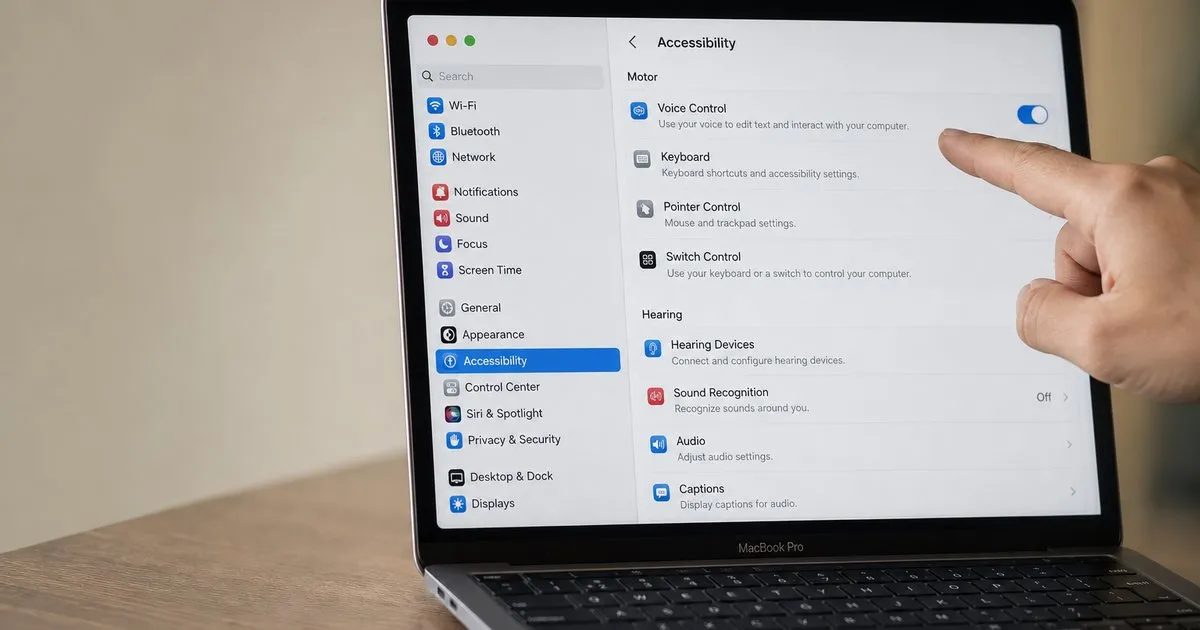
Learn how to enable and configure your MacBook's accessibility features. This guide covers VoiceOver, Zoom, Voice Control, and custom pointer settings to help you master your Mac.
Key Takeaways
- Most accessibility tools on a MacBook are centralized in a single location: System Settings > Accessibility.
- Voice Control processes all commands on-device, which is a significant feature for protecting your privacy.
- Features like Zoom and Pointer Control offer deep customization, allowing you to change everything from magnification styles to the cursor's color and size.
On this page
What are macOS Accessibility Features?
macOS includes a powerful suite of built-in accessibility features designed to support users with diverse vision, hearing, motor, and cognitive needs. These tools allow you to customize how you interact with your computer, from having text read aloud to controlling the entire interface with your voice. According to Apple, you can find nearly all of these options by navigating to the Apple menu, selecting System Settings, and then clicking Accessibility in the sidebar.
This guide provides an introduction to enabling and configuring four of the most impactful features: VoiceOver, Zoom, Voice Control, and custom pointer controls.
VoiceOver: The Built-in Screen Reader
VoiceOver is a screen reader that provides spoken descriptions of everything on your screen, including text, buttons, and other interface elements. This allows you to navigate and use your Mac without needing to see the display.
To turn it on:
- Open System Settings and click Accessibility.
- Select VoiceOver from the list.
- Toggle the VoiceOver switch to the on position.
You can also use a keyboard shortcut, typically Command-F5, to toggle VoiceOver. If your Mac has Touch ID, pressing it three times quickly will also activate the feature. Once enabled, you can open the VoiceOver Utility from its settings pane to customize the speaking rate, voice, and level of detail.
Zoom: Magnify Your Screen for Better Visibility
The Zoom feature magnifies your screen content, making text and images larger and easier to see. It's a critical tool for users with low vision and can also be useful for tasks that require high precision.
To enable and configure Zoom:
- Go to System Settings > Accessibility.
- Click Zoom.
- Choose your preferred method for activation, such as 'Use keyboard shortcuts to zoom' or 'Use scroll gesture with modifier keys to zoom'.
You can also select a zoom style. 'Full Screen' magnifies the entire display, while 'Picture-in-Picture' creates a movable magnified window over your normal screen. Clicking the 'Advanced' button reveals more options, like how the zoomed image moves with your cursor.
Voice Control: Navigate Your Mac with Spoken Commands
Voice Control allows you to command your Mac using only your voice. A key benefit is that all audio processing happens directly on your device, ensuring your personal data remains private. This is a core part of Apple's approach to voice commands, which prioritizes on-device intelligence.
To set up Voice Control:
- Navigate to System Settings > Accessibility.
- Click Voice Control.
- Toggle the Voice Control switch on. Your Mac may need to download a file for it to work the first time.
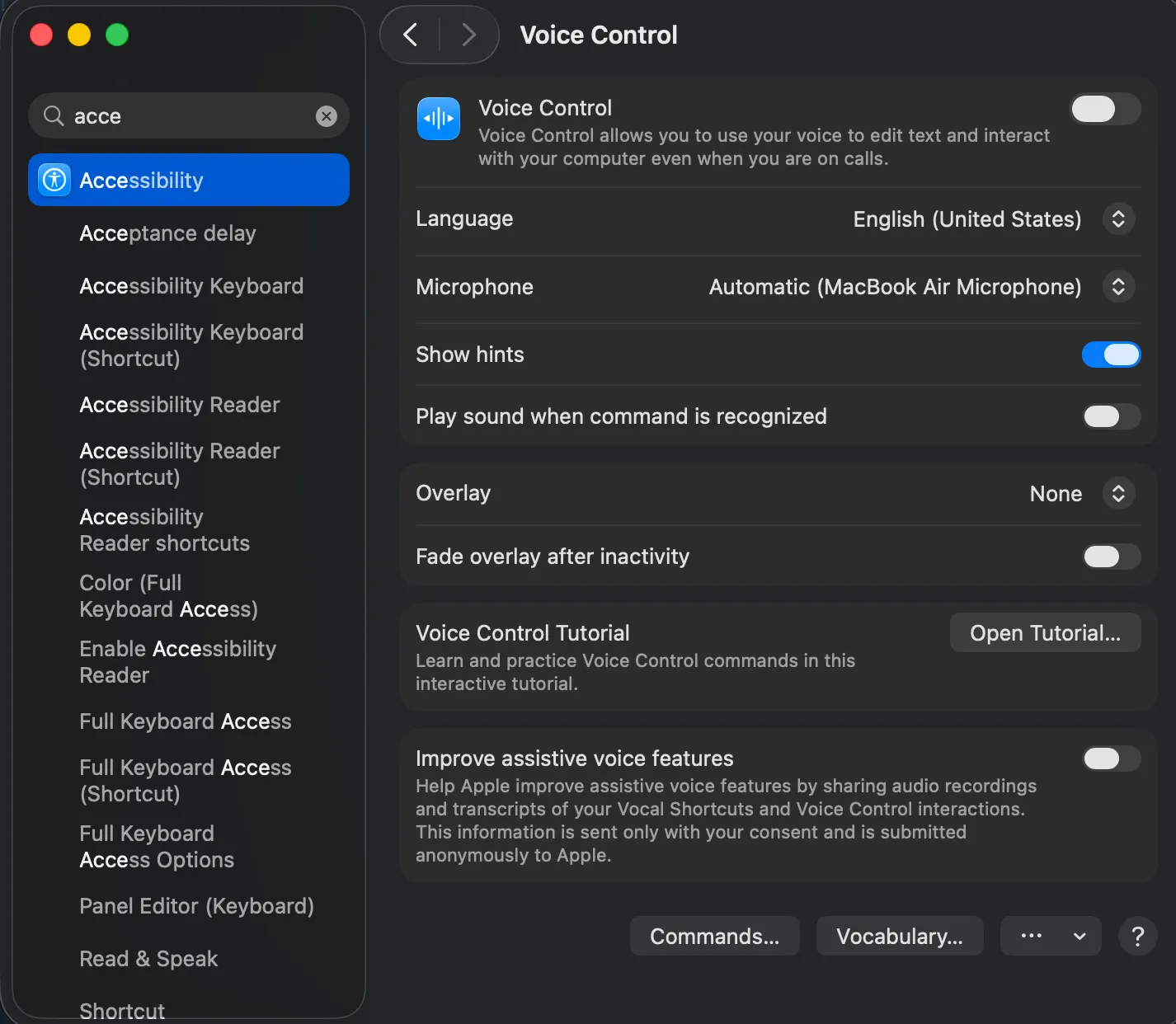
From this settings pane, you can select your microphone, choose a language, and enable an on-screen overlay that shows numbers or item names to help you target clicks. You can also click 'Commands' to view the full list of available commands or create your own.
Custom Pointer Controls: Make Your Cursor Easier to Use
macOS offers several ways to make your mouse or trackpad pointer easier to see and control. These settings are split between the Display and Pointer Control sections within Accessibility.
Customizing Pointer Size and Color
To make the pointer more visible:
- Go to System Settings > Accessibility > Display.
- Select the Pointer tab.
- Use the slider to adjust the pointer size.
- Click the color swatches to change the pointer's outline and fill colors to create better contrast against your background.
Alternative Control Methods
For users who find a traditional mouse or trackpad difficult to operate, macOS provides alternatives. In System Settings > Accessibility > Pointer Control, you can enable 'Mouse Keys', which lets you control the pointer using your keyboard's numeric keypad. This section also contains settings for double-click speed and scrolling to further tailor the experience to your needs.
About the author
The Mixstackrr Team is a group of writers and editors with more than 10 years of combined experience in SEO and consumer tech. We test devices, dig through settings, and turn everyday tech problems into clear, step-by-step guides anyone can follow.