Can Chromebooks Get Viruses? How to Stay Safe

Chromebooks rarely get traditional viruses, but they can still be hit by bad extensions and phishing. Here is the real risk and how to clean up.
Key Takeaways
- Chromebooks are very resistant to classic viruses thanks to sandboxing.
- The real threats are malicious extensions, fake sites, and phishing.
- Removing a bad extension and resetting Chrome clears most problems.
- A Powerwash removes anything stubborn as a last step.
On this page
Chromebooks almost never get traditional viruses. ChromeOS sandboxes each tab and app and updates itself automatically, so classic malware struggles to take hold. But Chromebooks can still be hit by malicious extensions, fake websites, and phishing. Here is the honest picture and how to clean up if something feels wrong.
Why Chromebooks resist viruses
- Sandboxing: each tab and app runs in its own isolated space, so a bad page cannot easily reach the rest of the system.
- Verified boot: ChromeOS checks itself on every startup and repairs tampering.
- Automatic updates: security patches install in the background, which is why keeping ChromeOS updated matters.
The threats that actually matter
The risk is not a virus in the old sense. It is these.
- Malicious extensions: a shady Chrome extension can hijack your browser, inject ads, or steal data.
- Phishing: fake login pages trick you into typing your password.
- Scam pop-ups: "your Chromebook is infected" warnings are themselves the scam. Never call the number or install what they suggest.
How to clean up a misbehaving Chromebook
If you see constant pop-ups, redirects, or a changed search engine, work through these.
- Remove bad extensions: open the three-dot menu, go to Extensions > Manage Extensions, and remove anything you do not recognize.
- Reset Chrome settings: in Settings, search for "reset" and choose Restore settings to their original defaults. This clears hijacked search engines and start pages.
- Check your homepage and search engine under Settings to make sure they were not changed.
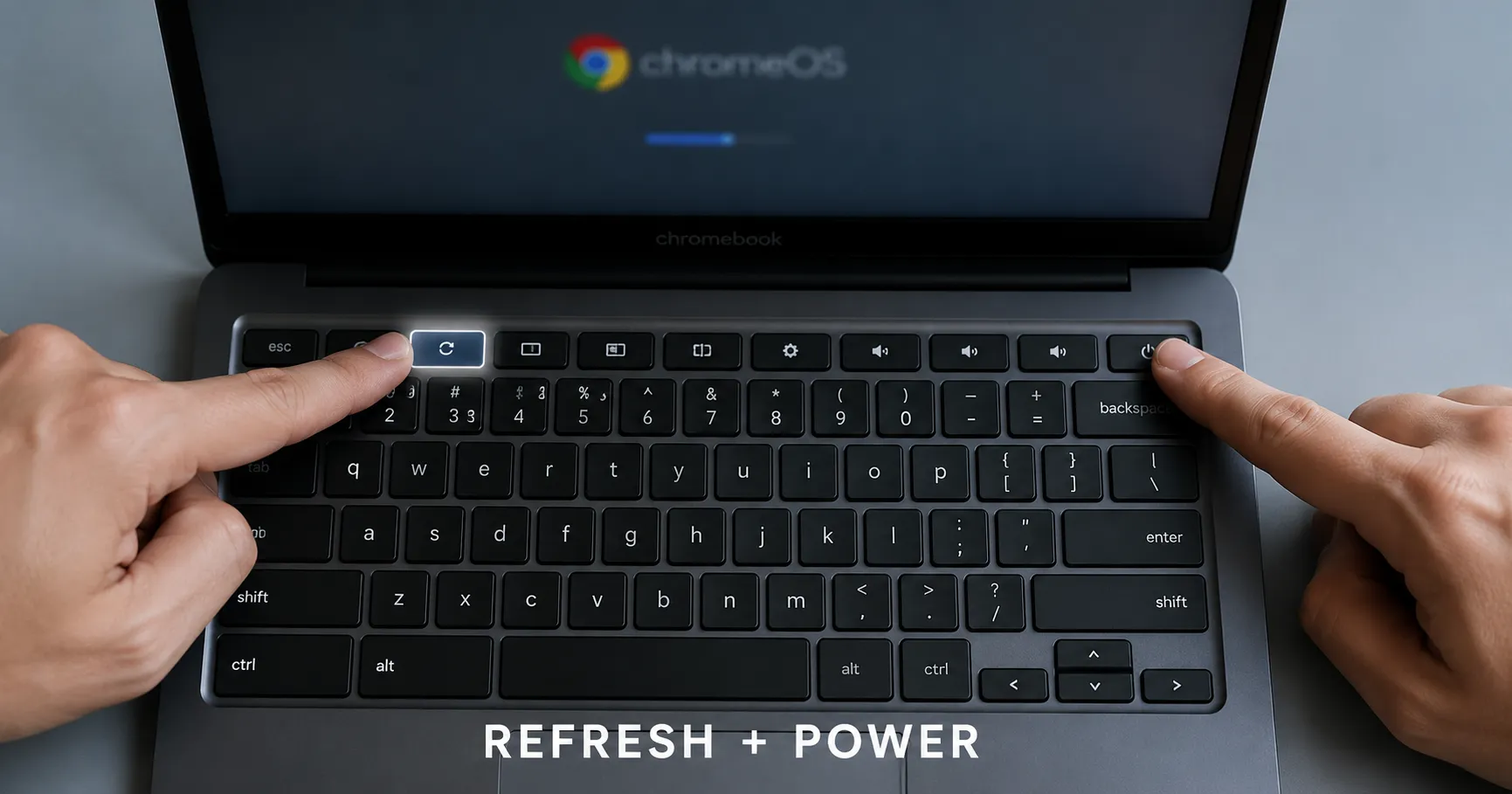
- Powerwash if needed: if problems persist, do a factory reset (Powerwash) to wipe everything local.
Do I need antivirus on a Chromebook?
For most people, no. ChromeOS's built-in protection plus good habits (only install trusted extensions, never type your password on a page you reached from a suspicious link) covers the real risks. Antivirus apps add little on top.
Recap
Real viruses are rare on ChromeOS, but bad extensions and phishing are not. Remove unknown extensions, reset Chrome, ignore scare pop-ups, and Powerwash as a last resort.
Frequently asked questions
Can a Chromebook get a virus?
Traditional viruses are very rare because ChromeOS sandboxes apps and updates itself. The real risks are malicious extensions, phishing, and scam pop-ups.
How do I remove malware from a Chromebook?
Remove unknown extensions, reset Chrome settings to their defaults, check your homepage and search engine, and Powerwash the device if problems continue.
Do I need antivirus software on a Chromebook?
For most users, no. ChromeOS's built-in protection plus careful habits handle the real threats, so antivirus apps add little.
About the author
The Mixstackrr Team is a group of writers and editors with more than 10 years of combined experience in SEO and consumer tech. We test devices, dig through settings, and turn everyday tech problems into clear, step-by-step guides anyone can follow.