Chromebook Keyboard Not Working: How to Fix It

Chromebook keyboard not working or typing wrong letters? Fix the software cause first, settings, layout, and an EC reset, before you blame the hardware.
Key Takeaways
- Most Chromebook keyboard failures are software: a freeze, tablet mode on convertibles, or a wrong layout/auto-repeat setting, all reversible in minutes.
- Run the Guest mode test early. Keys that work there point to an account or app, not hardware, and let you skip the EC reset and Powerwash.
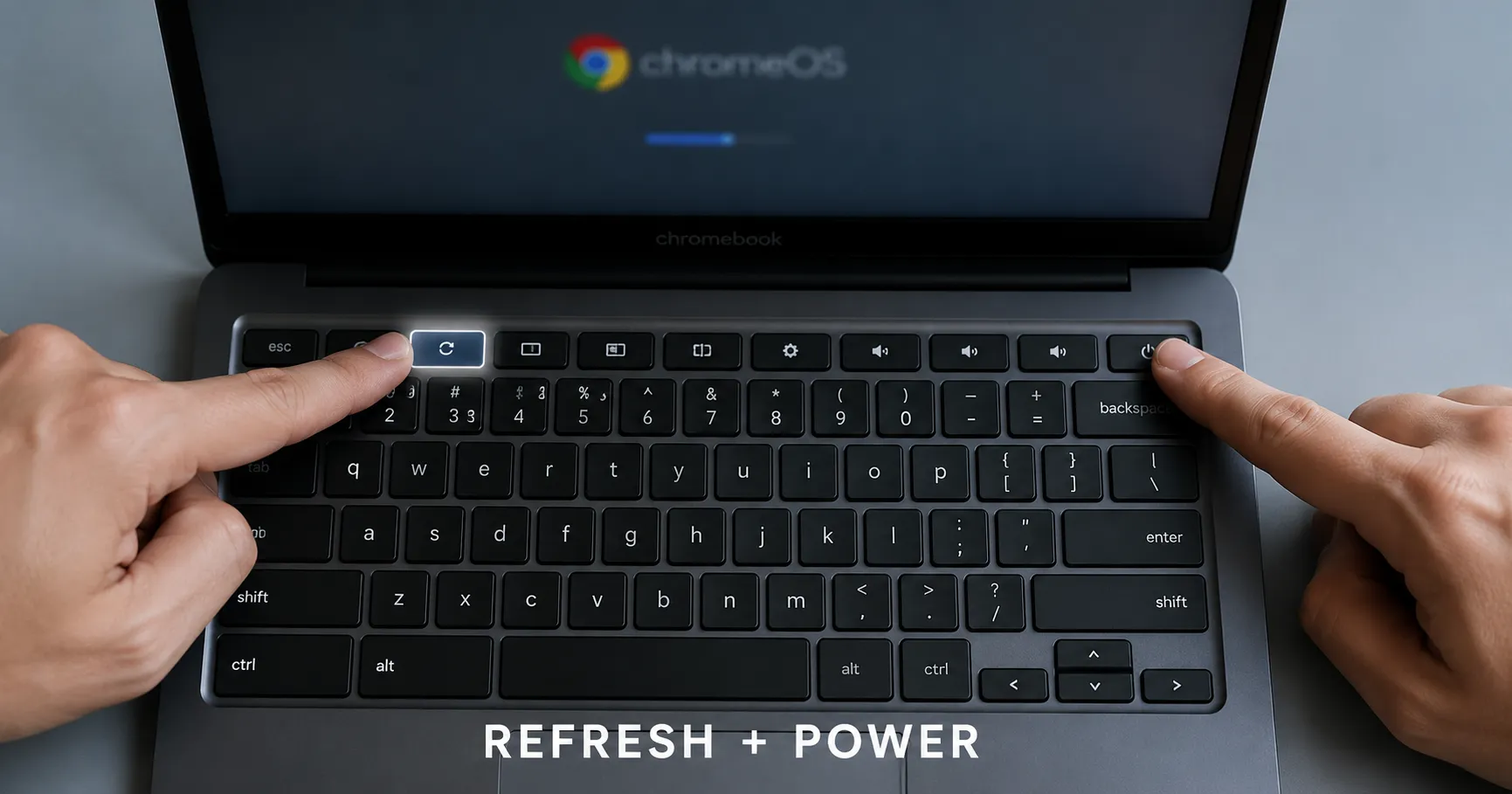
- Only conclude hardware failure after Guest mode, an EC reset (hold Refresh, press Power), and the built-in Diagnostics tool all confirm the keys never register.
On this page
- First: rule out a frozen system and stuck input
- Turn on the on-screen keyboard so you can keep working
- Fix keys that type the wrong letters or repeat
- Disable accessibility features you may have triggered by accident
- Isolate software from hardware with the guest test
- Run an EC reset (hard reset)
- Last resort: Powerwash, then conclude it is hardware
- The order that actually saves time
When a Chromebook keyboard stops working, the cause is far more often software than a broken switch, and almost every software cause is reversible in under five minutes.
Before you start, you need two things: a way to keep typing while you troubleshoot, and a way to tell software apart from hardware. Turn on the on-screen keyboard so you are never fully locked out, then work down the steps below in order. Do not jump to a factory reset, and do not assume the keyboard is physically dead until the isolation test at the end says so.
This guide covers two distinct failures that get lumped together: keys that do nothing at all, and keys that type the wrong letters or repeat. They have different fixes, so identify which one you have first.
First: rule out a frozen system and stuck input
According to Google's official Chromebook support, the first step for any keyboard problem is to turn the Chromebook off and back on, because a frozen ChromeOS session can stop registering key presses without any hardware fault.
Hold the power button for about 3 seconds to force a shutdown if a normal restart will not respond, then power back on and test a few keys.
If you have a convertible Chromebook (one whose screen folds back), check that it is not in tablet mode. When the screen is flipped past roughly 180 degrees, ChromeOS disables the built-in keyboard and touchpad on purpose, so the keys are working exactly as designed. Fold the screen back to a normal laptop angle and the keyboard reactivates.
Turn on the on-screen keyboard so you can keep working
Per Android Authority's troubleshooting walkthrough, you can enable a tappable on-screen keyboard at Settings > Accessibility > Keyboard and text input, then toggle on "On-screen keyboard."
This is your safety net for the rest of this guide. It also doubles as a quick hardware test: if the on-screen keyboard types correctly but the physical keys do not, the problem is below the software layer, which points toward hardware.
Fix keys that type the wrong letters or repeat
If keys respond but produce the wrong characters, this is almost never hardware. It is a layout, language, or auto-repeat setting.
According to ASUS support, you should first confirm the active input method from the status bar in the bottom-right corner, because a US keyboard set to a UK or international layout will swap symbols and some letters.
- Wrong symbols or swapped letters: open Settings > Device > Keyboard and confirm the keyboard language matches your physical keyboard, as Google documents under "Change your keyboard language."
- Top-row keys behaving as function keys: ASUS notes you can toggle "Treat top-row keys as function keys" in the same Keyboard settings if the Refresh, brightness, and volume keys stopped acting as shortcuts.
- One key spamming repeated characters: ASUS points to the auto-repeat controls, "Delay before repeat" and "Repeat rate," which you can slow down or, per Android Authority, disable entirely by turning off "Press and hold to automatically repeat the key."
Disable accessibility features you may have triggered by accident
Sticky Keys and ChromeVox can both be switched on by an accidental shortcut and make a working keyboard feel broken.
According to Android Authority, Sticky Keys (which makes Ctrl, Alt, and Shift latch instead of needing to be held) is toggled at Settings > Accessibility > Keyboard and text input under "Sticky keys." Turn it off if modifier combinations are behaving strangely.
If ChromeOS is reading the screen aloud, ChromeVox is on; press Ctrl + Alt + Z to toggle it off.
Isolate software from hardware with the guest test
This is the single most useful step, and the SERP rarely lays it out clearly. It tells you whether to keep tinkering or stop.
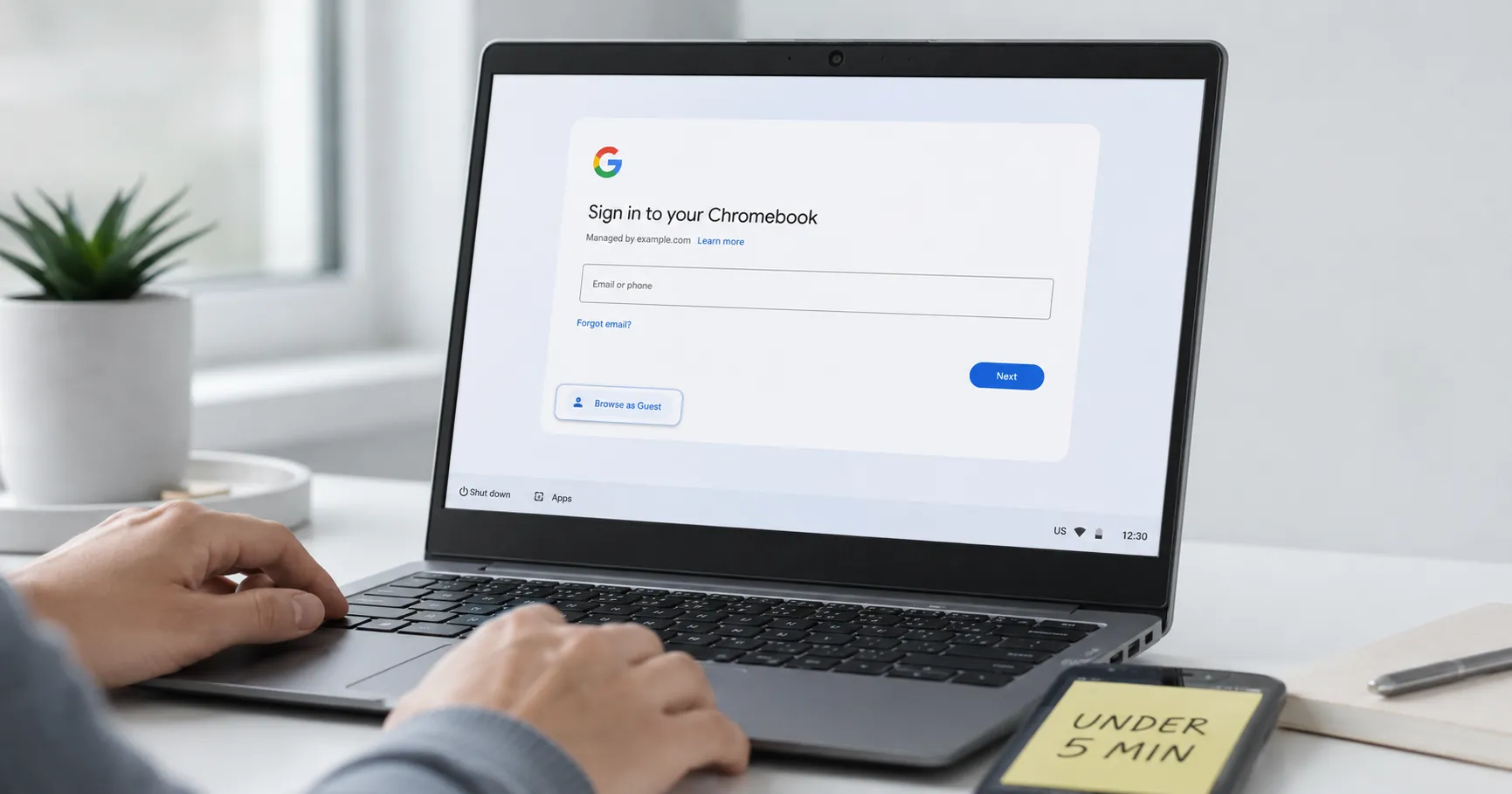
Both Google and ASUS recommend testing the keyboard in Guest mode. Sign out, choose "Browse as Guest" on the sign-in screen, and test the keys.
- Keys work in Guest mode: the fault is in your account profile or an app, not the hardware. Google advises removing the affected account from the Chromebook and adding it back.
- Keys still fail in Guest mode: the problem is system-level or physical, so continue to the EC reset below.
ChromeOS also ships a built-in keyboard diagnostic. Open Settings > About ChromeOS > Diagnostics, select the Keyboard tab, and press each key to see which ones register. A key that never lights up in this tool is a strong hardware signal.
Run an EC reset (hard reset)
An EC reset restarts the Chromebook's embedded controller, the chip that manages low-level hardware including the keyboard, and it does not delete your files.
According to Android Authority, the procedure on most clamshell Chromebooks is to turn the device off, press and hold the Refresh key, then press and release the Power button while still holding Refresh. Release Refresh once the Chromebook starts up.
On a Chromebook tablet, Android Authority notes you instead hold both volume up and volume down for 10 seconds or more. For a Chromebox, unplug the power cable and plug it back in. This is the same hardware-level reset covered in our guide on how to hard reset a Chromebook without losing files, so use that walkthrough if your exact model uses a different key combination.
Last resort: Powerwash, then conclude it is hardware
If the keys still fail after a guest test and an EC reset, a corrupted system profile is the last software suspect.
Google and ASUS both list a factory reset (Powerwash) as the final software step, found at Settings > System preferences > Reset > Powerwash. This wipes local data, so back up anything stored locally first; most Chromebook data lives in Google Drive and survives.
If the keyboard is still dead after Powerwash, and the on-screen keyboard and Diagnostics tool both confirmed the physical keys never register, you have isolated a hardware fault. At that point, ASUS recommends contacting the manufacturer, and a repair or USB keyboard is the realistic path.
The order that actually saves time
The fastest route is to spend 30 seconds ruling out tablet mode and a freeze, then run the Guest test immediately rather than last.
The Guest test splits the entire problem in two: a working keyboard in Guest mode means you never needed the EC reset or Powerwash, while a failure there means you can skip straight past the per-account fixes. Treat the keyboard as broken only after Guest mode, an EC reset, and the Diagnostics tool all agree.
Frequently asked questions
Why is my Chromebook keyboard typing the wrong letters?
This is almost always a software setting, not a fault. Check the active input method in the bottom-right status bar and confirm the keyboard language at Settings > Device > Keyboard matches your physical keyboard. A US keyboard set to an international layout will swap symbols and some letters.
How do I do a hard reset (EC reset) on a Chromebook?
On most clamshell Chromebooks, turn it off, hold the Refresh key, then press and release the Power button while still holding Refresh. On a Chromebook tablet, hold both volume buttons for 10 seconds or more. This restarts the hardware controller and does not delete your files.
How can I tell if my Chromebook keyboard problem is hardware?
Sign out and choose Browse as Guest, then test the keys. If they work in Guest mode, it is software, an account or app. If they still fail after the Guest test and an EC reset, open Settings > About ChromeOS > Diagnostics, run the Keyboard test, and any key that never registers indicates a hardware fault.
About the author
The Mixstackrr Team is a group of writers and editors with more than 10 years of combined experience in SEO and consumer tech. We test devices, dig through settings, and turn everyday tech problems into clear, step-by-step guides anyone can follow.