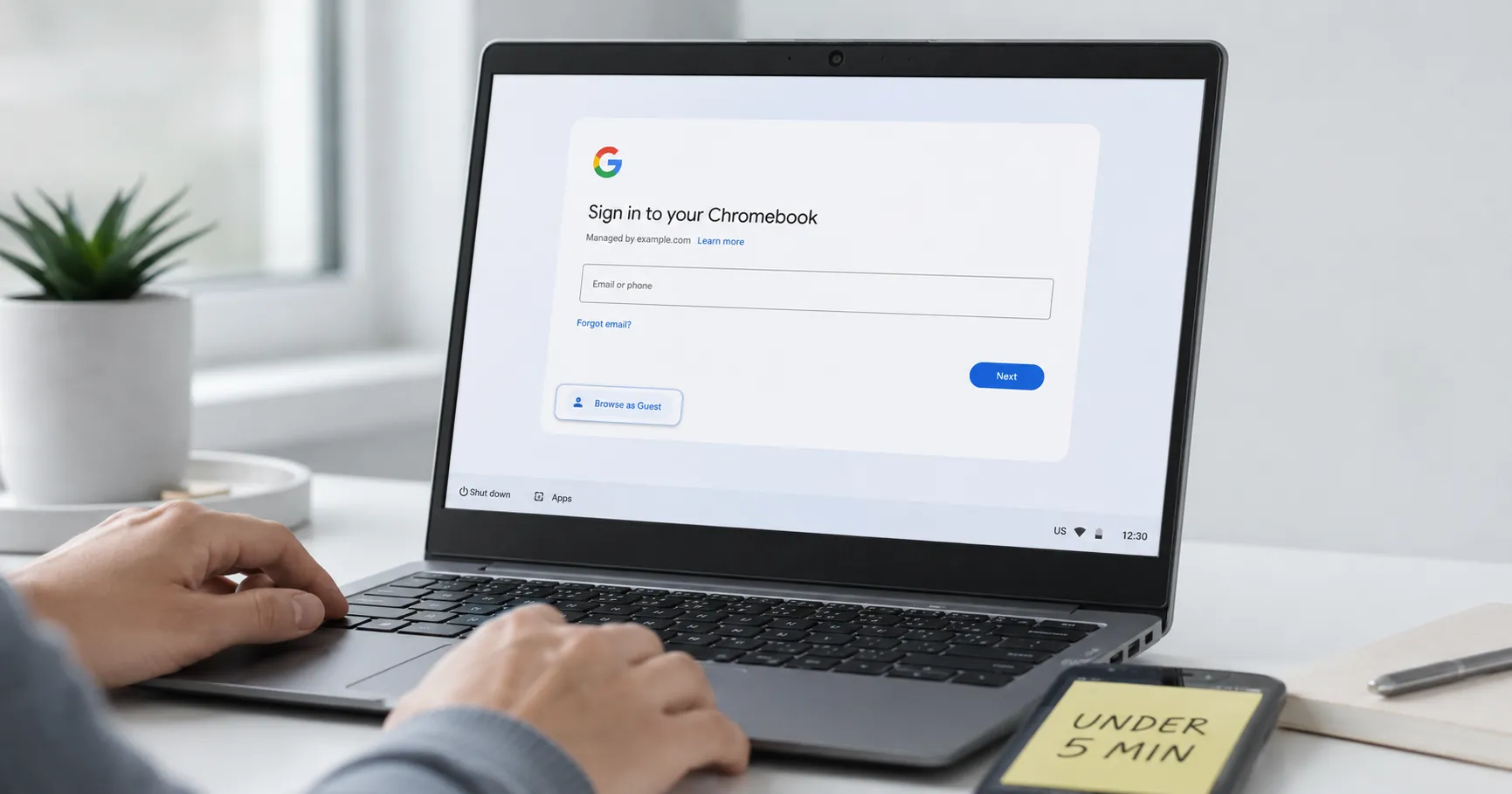
How to Hard Reset a Chromebook (Without Losing Files)

Learn how to hard reset a Chromebook to fix freezes and unresponsive hardware, why it keeps your files, and how it differs from a Powerwash factory reset.
Key Takeaways
- A hard reset (Refresh + Power on a standard Chromebook) restarts the hardware and keeps your accounts and files, unlike a Powerwash.
- Tablets use Volume Up + Power; a Chromebox or Chromebase resets by unplugging the power cable, not a key combo.
- If a hard reset seems to fail, it is usually a drained battery or bad charger, so charge first and hold the keys the full 10 seconds.
On this page
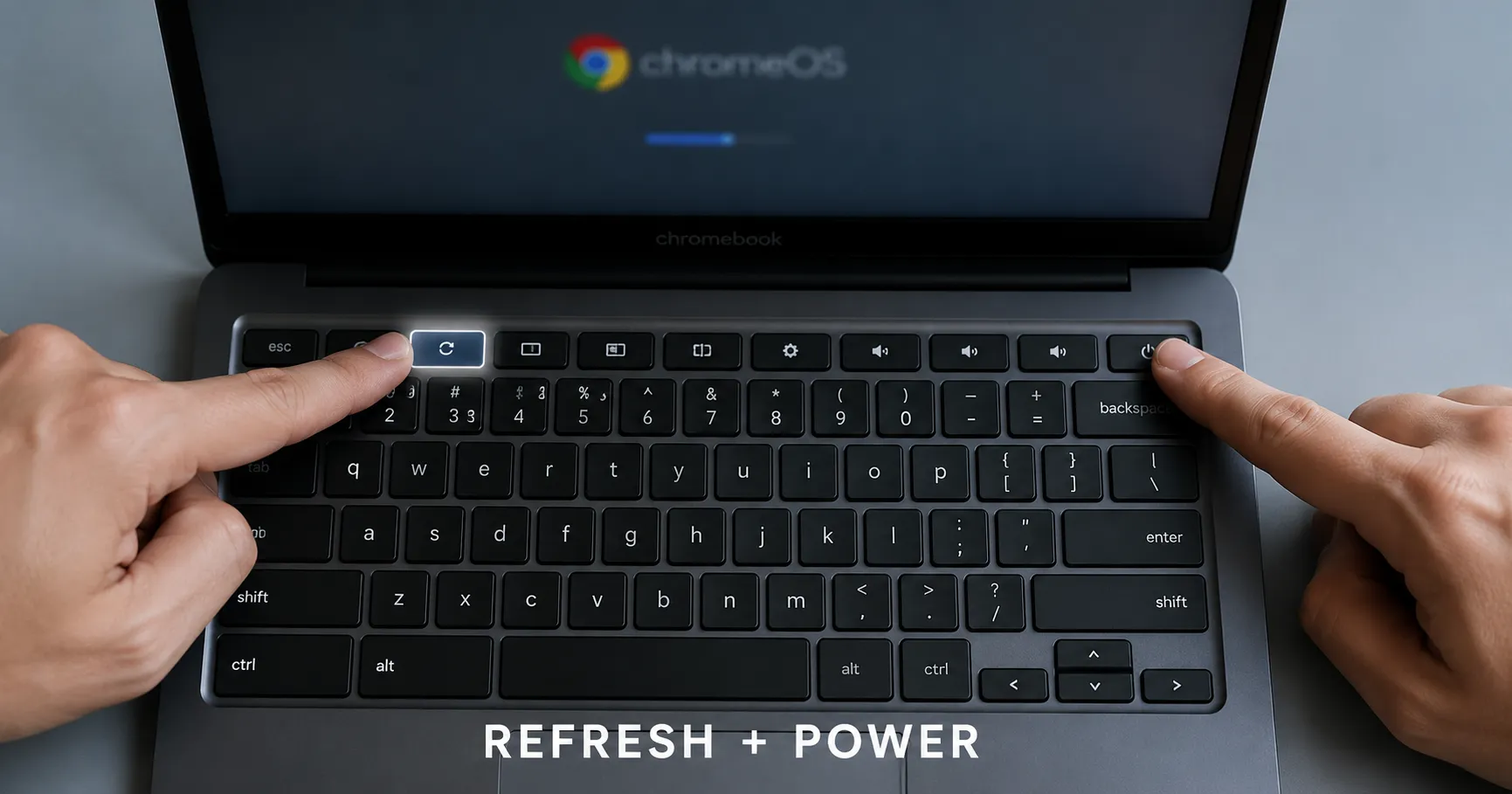
A hard reset restarts your Chromebook's hardware to clear a freeze, a dead keyboard, or a touchpad that stops responding. On a standard Chromebook the steps are simple: turn it off, then hold Refresh and tap Power.
Before you start, know one thing that most search results blur together. A hard reset is not a factory reset. According to Google's Chromebook Help, a hardware reset "will restart your Chromebook hardware (like your keyboard and touchpad)" and only "might delete some files in your Downloads folder." If you want to erase the device entirely, that is a Powerwash instead, and we cover it in our guide on how to factory reset (Powerwash) a Chromebook.
Prerequisites are minimal. You need physical access to the keyboard, and ideally a charger nearby, since a near-dead battery is the most common reason a hard reset appears to fail. You do not need to be signed in, and you do not need an admin password.
Hard reset vs. factory reset: the difference that matters
This is the distinction the top search results keep collapsing, and getting it wrong can cost you every local file.
A hard reset reinitializes the embedded controller (EC), the chip that manages the keyboard, touchpad, battery, and other onboard peripherals. As ChromeStory explains, the process "drops all power to the EC, so when the power comes back on it goes through a reinitialization," which is why it fixes peripheral glitches a normal reboot cannot.
A Powerwash is a full factory reset. Per Google's reset guide, it "erases all user data on your Chromebook's hard drive, including all the files in the Downloads folder," along with accounts and most settings. It does not touch files in Google Drive or on external storage.
| Aspect | Hard reset (hardware reset) | Powerwash (factory reset) |
|---|---|---|
| Keys | Refresh + Power | Ctrl + Alt + Shift + R |
| What it does | Restarts EC / hardware | Wipes device to out-of-box state |
| Local files | Kept (may clear some Downloads) | Erased, including Downloads |
| Accounts & settings | Kept | Removed |
| Use it for | Freezes, dead keyboard/touchpad | Selling, profile corruption, fresh start |
The practical rule: try a hard reset first, because it is reversible in effect and keeps your data. Reach for a Powerwash only when the hard reset does not fix the problem.
How to hard reset a standard Chromebook
This is the method for the vast majority of clamshell Chromebooks with a built-in keyboard.
- Turn off your Chromebook completely (not just close the lid).
- Press and hold the Refresh key, then tap the Power button.
- When the Chromebook starts up, release Refresh.
The Refresh key is the circular arrow on the top row, usually above the 3 and 4 keys. Digital Trends describes the same combination, noting it "resets only hardware settings" rather than your accounts or files.
If nothing happens, Google lists an alternative combination: "Press and hold Back + Refresh + Power for at least 10 seconds," which is useful on models where the simple combo does not trigger.
How to hard reset a Chromebook tablet or detachable
Tablet-style ChromeOS devices and detachables often lack a usable Refresh key when the keyboard is removed, so the method changes.
According to Google, you "press and hold the Volume Up and Power buttons for at least 10 seconds, then release them." There is no Refresh key in this path, which is exactly why people with tablets get stuck following clamshell instructions.
One caveat: button placement varies by model, so confirm which side button is Volume Up before holding, especially on detachables where the buttons sit close together.
How to reset a Chromebox or Chromebase
Desktop-style ChromeOS hardware has no battery to cycle and no keyboard combo for the EC reset.
For an Acer Chromebox, ASUS Chromebox, LG Chromebase, or Samsung Chromebox, Google's instruction is physical: "turn off the device, remove the power cable, then plug it back in." Older or unusual models, such as the Cr-48, the Asus Chromebit, or a Lenovo ThinkPad X131e, may require removing the battery or pressing a recessed reset button with a paperclip, so check your specific model's support page before improvising.
What to do when a hard reset doesn't work
A hard reset that seems to do nothing is usually a power problem, not a broken device, and this is the part most guides skip entirely.
- Charge first. If the battery is fully drained, the Chromebook may not respond to the key combo at all. Plug in the charger, wait a few minutes, then retry.
- Hold longer. Some models need the full 10 seconds with Refresh + Power before the EC actually power-cycles. Releasing early can abort it.
- Check the charger and port. A failing cable or charge port can mimic a dead device. Try a different USB-C charger if you have one.
- Confirm it is fully off. A frozen screen can look off while the device is still running. Hold Power for about 10 seconds to force a shutdown first, then do the hard reset.
If it still will not power on or respond after charging, the issue may be deeper than a frozen session. Our guide on why your Chromebook won't turn on walks through the next checks.
When a hard reset is the wrong tool
A hard reset clears a stuck state, but it does not repair corrupted software or remove a problem account, and pretending otherwise wastes your time.
If ChromeOS itself is damaged, you will see a message like "Chrome OS is missing or damaged." At that point a hard reset cannot help. ChromeStory notes that recovery mode "removes everything that was installed on your Chromebook, including Chrome OS," reinstalling the operating system from a USB drive or SD card. That is the heavier fix beyond a Powerwash.
If the trouble is a persistent profile glitch, slow performance, or you are handing the device to someone else, a hard reset is the wrong call. A Powerwash is the right one, and Google recommends backing up local files to Google Drive or external storage before you run it.
Bottom line: a hard reset is the first thing to try for freezes and unresponsive hardware because it keeps your files, and it is the wrong choice when ChromeOS is corrupted or you actually need a clean wipe.
Frequently asked questions
Does a hard reset on a Chromebook delete my files?
No, not your accounts or most files. Google notes a hardware reset only "might delete some files in your Downloads folder." A factory reset (Powerwash), which uses Ctrl + Alt + Shift + R, is the one that erases everything on the device.
What is the hard reset key combination on a Chromebook?
On a standard Chromebook, turn it off, then hold Refresh and tap Power. On a Chromebook tablet, hold Volume Up and Power for at least 10 seconds. A Chromebox or Chromebase resets by unplugging and replugging the power cable.
Why didn't my Chromebook hard reset work?
The most common cause is a drained battery, so plug in the charger and try again. Also hold the keys for the full 10 seconds, confirm the device is fully off first, and test a different charger or port if it still does not respond.
About the author
The Mixstackrr Team is a group of writers and editors with more than 10 years of combined experience in SEO and consumer tech. We test devices, dig through settings, and turn everyday tech problems into clear, step-by-step guides anyone can follow.