How to Factory Reset a Chromebook (Powerwash)

.webp)
Powerwash factory-resets your Chromebook and wipes local data. How to reset without a password, recover if it will not boot, and the managed-device limit.
Key Takeaways
- A Powerwash is the Chromebook factory reset, and it erases everything stored locally.
- You can factory reset without a password using Ctrl + Alt + Shift + R at the sign-in screen.
- Powerwash will not remove school or work enrollment, only an org admin can deprovision the device.
On this page
To factory reset a Chromebook, you run a Powerwash, which wipes all local data and returns the device to how it came out of the box. Back up anything important first, then trigger it from Settings or with a keyboard shortcut on the sign-in screen. This also covers how to factory reset a Chromebook without a password, and the hard limits when a device is managed by a school or workplace.
Back up your files first
A Powerwash deletes everything in your local storage, including the Downloads folder. Per Google's support page, a factory reset erases all the information on your Chromebook's hard drive, including your settings, apps, and files, so your Google account data (Gmail, Drive, bookmarks) is safe in the cloud but on-device files are not.
- Move important files to Google Drive or an SD card.
- Note any apps or settings you will need to set up again.
Powerwash from Settings
- Open Settings.
- Go to System > Reset settings (sometimes under Advanced).
- Click Powerwash, then Restart.
- After it restarts, click Powerwash again and follow the prompts.
Powerwash with the keyboard shortcut
If you are stuck at the sign-in screen, this is faster.
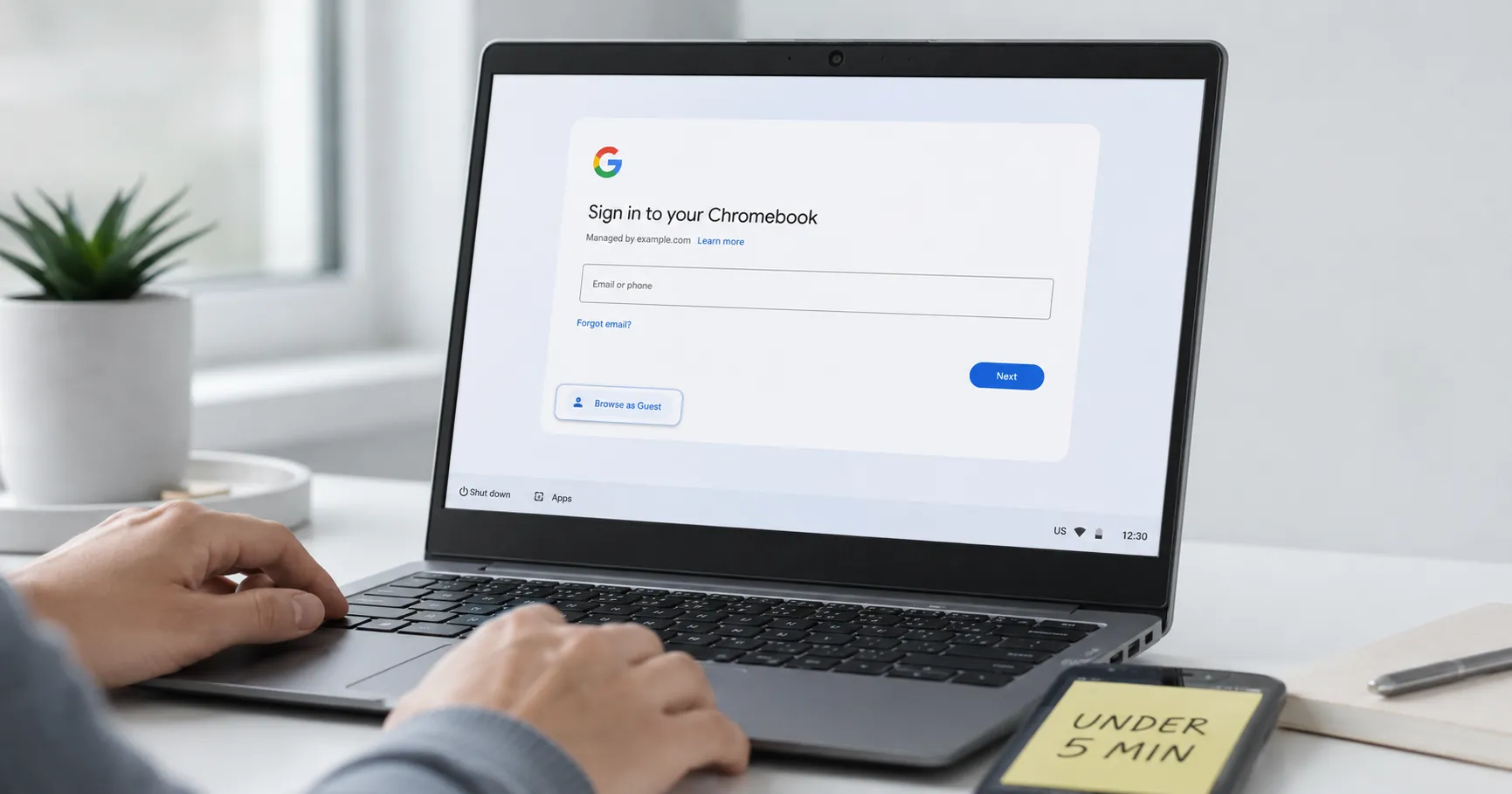
- Sign out so you are at the sign-in screen.
- Press Ctrl + Alt + Shift + R.
- Click Restart, then Powerwash and confirm.
How to Factory Reset a Chromebook Without a Password
You can factory reset a Chromebook without a password because the keyboard shortcut works from the sign-in screen, before any account login. According to Google's reset instructions, you sign out, press and hold Ctrl + Alt + Shift + R, select Restart, then choose Powerwash and Continue. No existing password is required to start the wipe.
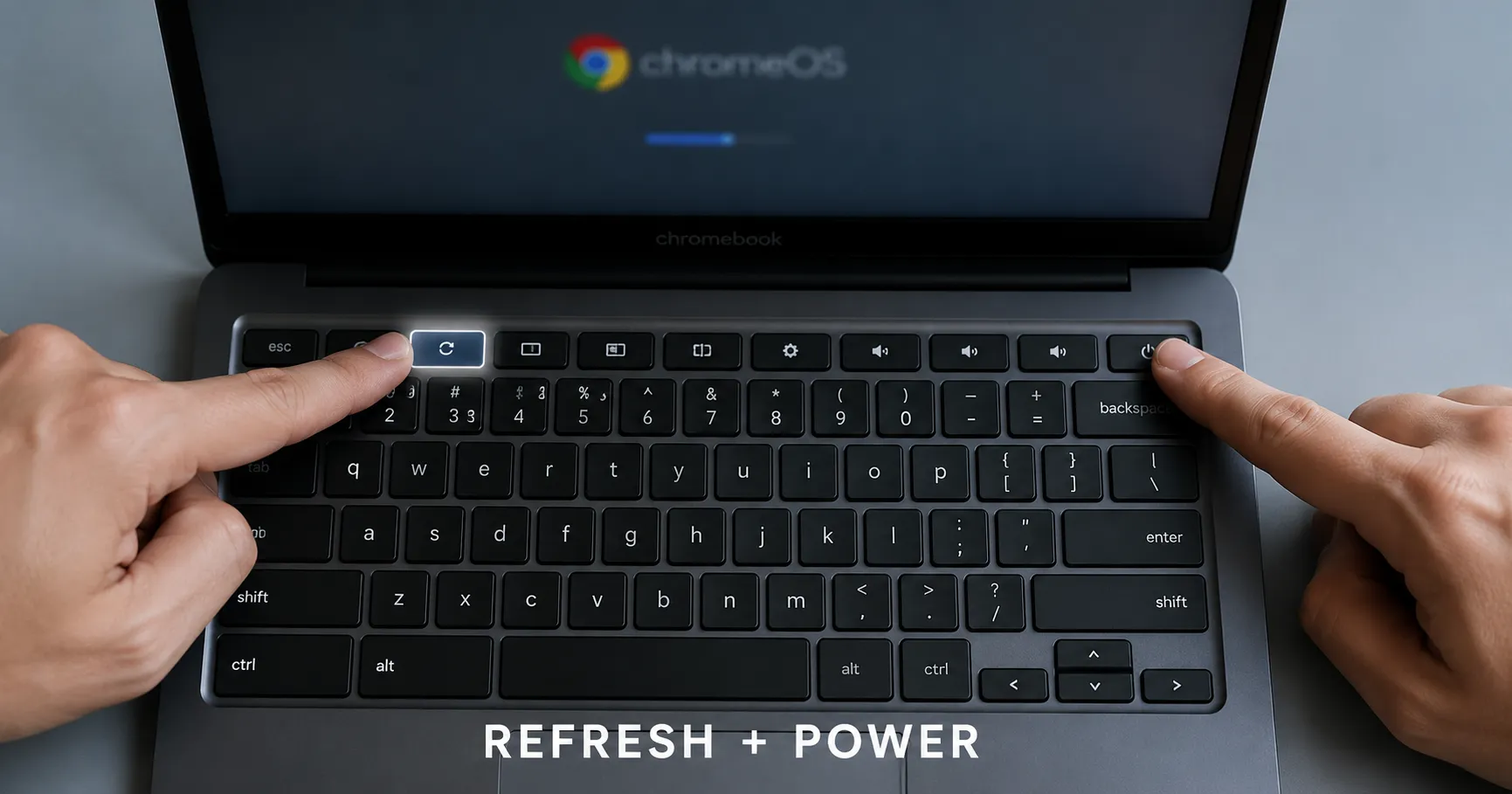
If you cannot even reach a working sign-in screen, the fallback is recovery mode. Google's recovery guide says to hold Esc + Refresh, then press Power, and to write a fresh ChromeOS image to a USB drive of at least 8 GB using the Chromebook Recovery Utility on a second computer.
Here is the caveat most guides skip. A Powerwash wipes local accounts, but it does not bypass Google account ownership. When the Chromebook restarts and walks you through setup again, it can still ask you to sign in with a Google account that was previously on the device, so resetting without a password gets you a clean device, not a way around someone else's account.
Resetting a Managed School or Work Chromebook
A Powerwash does not remove school or work enrollment. Google states plainly that if you use your Chromebook at work or school, you cannot reset it yourself, and you must contact your administrator to wipe and re-enroll the device.
The reason is forced re-enrollment. Per Google's device-wipe documentation, when forced re-enrollment is enabled the device automatically re-enrolls when it restarts in secure mode, and you will see a "This device will be managed by domain.com" message during setup. The management policy comes straight back.
Only an organization admin can truly release the device. Google's repair, repurpose, or retire guide says deprovisioning happens from the Google Admin console with an administrator account, and that it removes all policies on the device, with an option to factory reset and clear enrollment data. There is no legitimate user-side trick to undo this. If you bought a used Chromebook that is still enrolled, contact the seller or the listed organization, not a workaround.
If your Chromebook will not boot
When the device is too broken to reach Settings, you need to recover it with a fresh ChromeOS image. This is the same recovery flow as a forgotten-password lockout, and it does not skip the steps above.
- On another computer, install the Chromebook Recovery Utility Chrome extension.
- Follow it to write a recovery image to a USB drive (8 GB or larger).
- On the Chromebook, enter recovery mode by holding Esc + Refresh + Power, then insert the USB drive and follow the steps.
When should you Powerwash?
Powerwash when you are selling the device, when it is badly misbehaving, or as a last resort for speed. If you only want to clear a glitch without erasing anything, try a hard reset (restart) without erasing data first.
If you are chasing performance, try the lighter fixes in our guide on why your Chromebook is slow. If it will not turn on at all, start with why your Chromebook will not turn on.
Recap
Back up first, then Powerwash from System > Reset settings or with Ctrl + Alt + Shift + R at the sign-in screen, which also works without a password. If the device is managed by a school or employer, only the admin can release it. If it will not boot, recover from a USB image.
Frequently asked questions
Does a Powerwash delete everything on a Chromebook?
It erases all local data and accounts on the device. Files in Google Drive and other cloud services are safe, but anything stored only on the Chromebook is deleted.
Can I factory reset a Chromebook without a password?
Yes. At the sign-in screen, press Ctrl + Alt + Shift + R, then choose Restart and Powerwash. No password is needed to start. It does not, however, bypass a Google account that the device asks for during setup, or remove school or work enrollment.
How do I reset a Chromebook that will not turn on?
Create a recovery USB with the Chromebook Recovery Utility on another computer, then boot the Chromebook into recovery mode with Esc + Refresh + Power and follow the prompts.
About the author
The Mixstackrr Team is a group of writers and editors with more than 10 years of combined experience in SEO and consumer tech. We test devices, dig through settings, and turn everyday tech problems into clear, step-by-step guides anyone can follow.